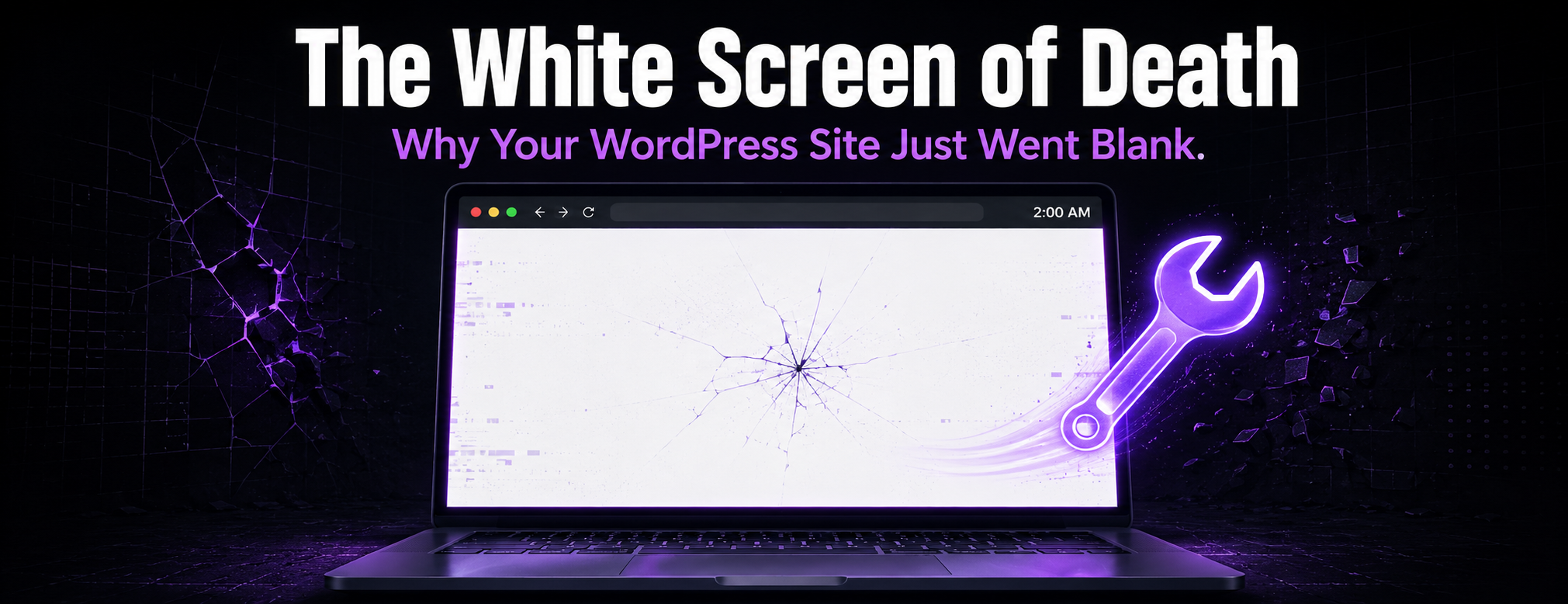
You clicked update. Now there's just... white. Nothing else on the screen, no error, no text, just a blank page staring back at you. Breathe. You're nowhere near the first business owner to hit the "White Screen of Death" (WSOD), and no, the site isn't gone. Something choked, and it froze instead of loading.
Honestly, we hear this same story constantly. Someone's up at 2 AM staring at this exact white screen, half-convinced they just erased their entire store. They haven't.
What Actually Causes the White Screen?
Usually it's one of three culprits.
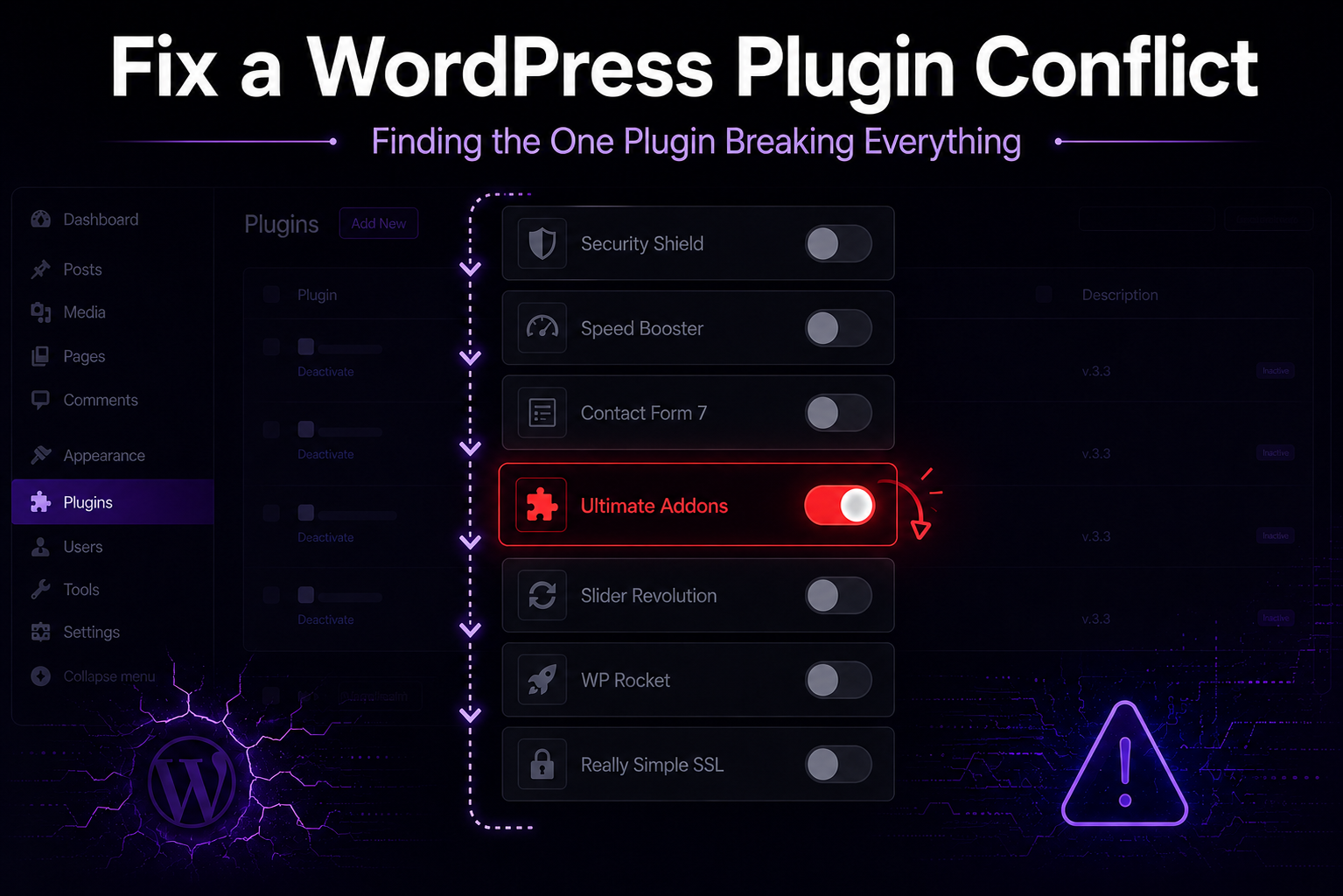
- The Plugin or Theme Conflict: two bits of code start fighting each other and WordPress just quits. Two caching plugins running together. An SEO plugin update that doesn't like your older theme. Doesn't matter which, something breaks.
- Memory Exhaustion: a script wants more memory than your host will hand over. Big database queries. Media uploads pushed through in bulk. The server hits its limit and gives up.
- The Silent Auto-Update: nobody touched anything on your end. A plugin just updated itself overnight, skipped staging entirely, and took the live site down while everyone was asleep.
What You Should Do Next (And What to Avoid)
Get away from the refresh button. That's step one. Panic pushes people toward fast fixes, and fast fixes are usually where the real damage starts.
A few things worth skipping entirely:
- Don't rely on AI for surgery: great for brainstorming, useless for this. ChatGPT can't log into your server, doesn't know your passwords, and has zero visibility into what's actually conflicting. Copy-pasting AI-generated PHP straight into your core files just stacks a second problem on top of the first.
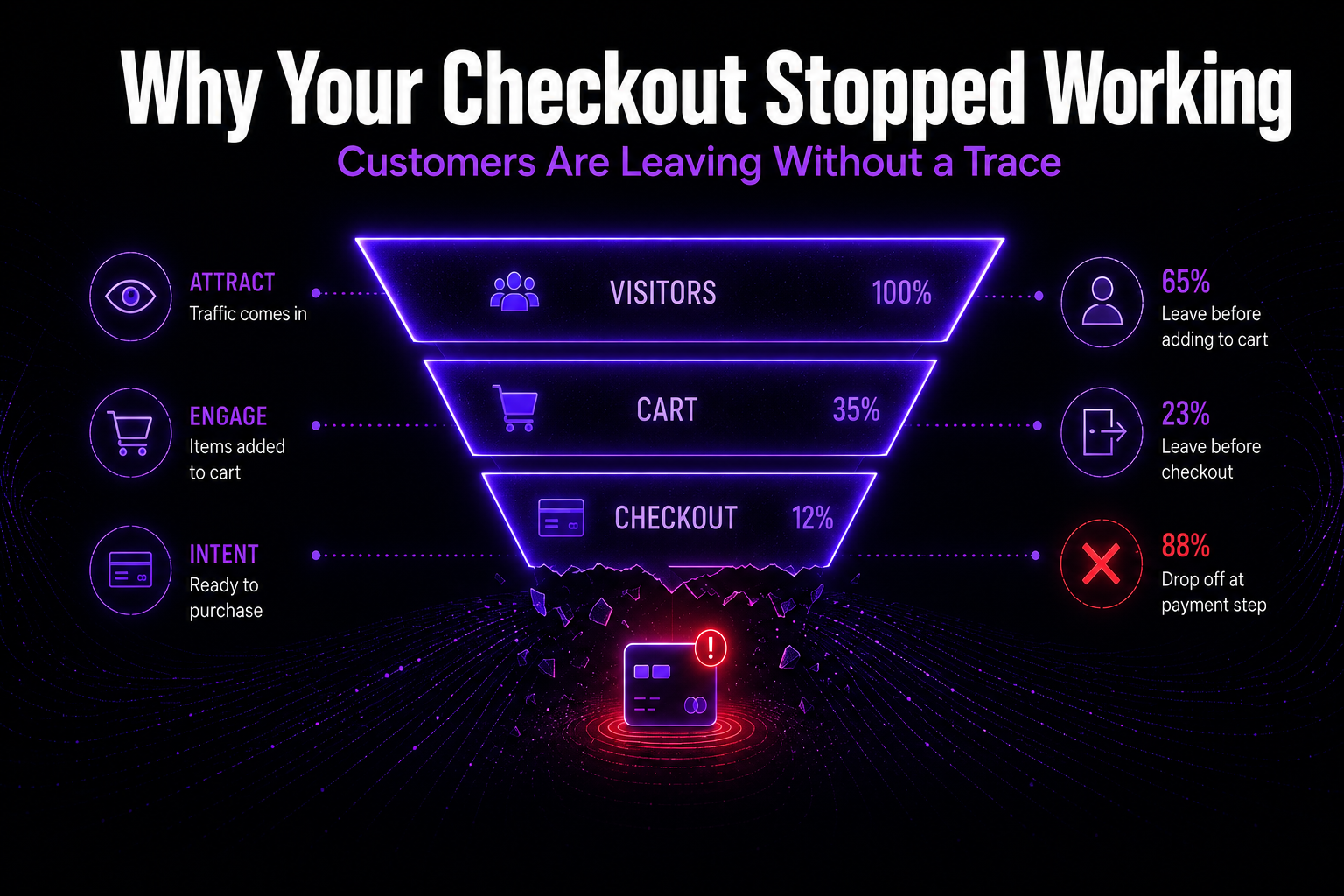
- Don't hire a cheap offshore freelancer: $15 an hour looks like a deal right up until their "fix" takes down your contact form or checkout along with it. Happens more than you'd guess.
- Don't randomly rename server folders: not unless you genuinely understand your FTP setup and database structure. Renaming things to "turn them off" can wreck your data permanently.
How to Get the Lights Back On
Running a business is your job. Decoding server error logs at 2 AM isn't, and it never should be.
If the site owner cannot safely isolate the cause, our WordPress white screen repair service can help diagnose the failure, review access requirements, and define the repair scope.
Recovery mode
WordPress may email an administrator a recovery-mode link after certain fatal errors. Use it carefully, note which plugin or theme WordPress identifies, and avoid making multiple changes before confirming a backup exists.
PHP memory and fatal errors
A white screen can come from PHP memory exhaustion, incompatible PHP versions, missing files, or fatal plugin and theme errors. Hosting error logs are often more useful than the blank browser page.
Plugin and theme isolation
If you have file access, rename the suspected plugin folder or temporarily switch themes in a controlled way. On active stores or membership sites, use staging when possible before changing the live site.
Error-log review
Check wp-content/debug.log, server PHP logs, and hosting dashboard errors. Look for the first fatal error, not only the last warning.
Hosting-level checks
Confirm PHP version, memory limits, file permissions, recent hosting changes, security blocks, and server resource limits. A hosting change can look like a WordPress bug.
Backup and staging warning
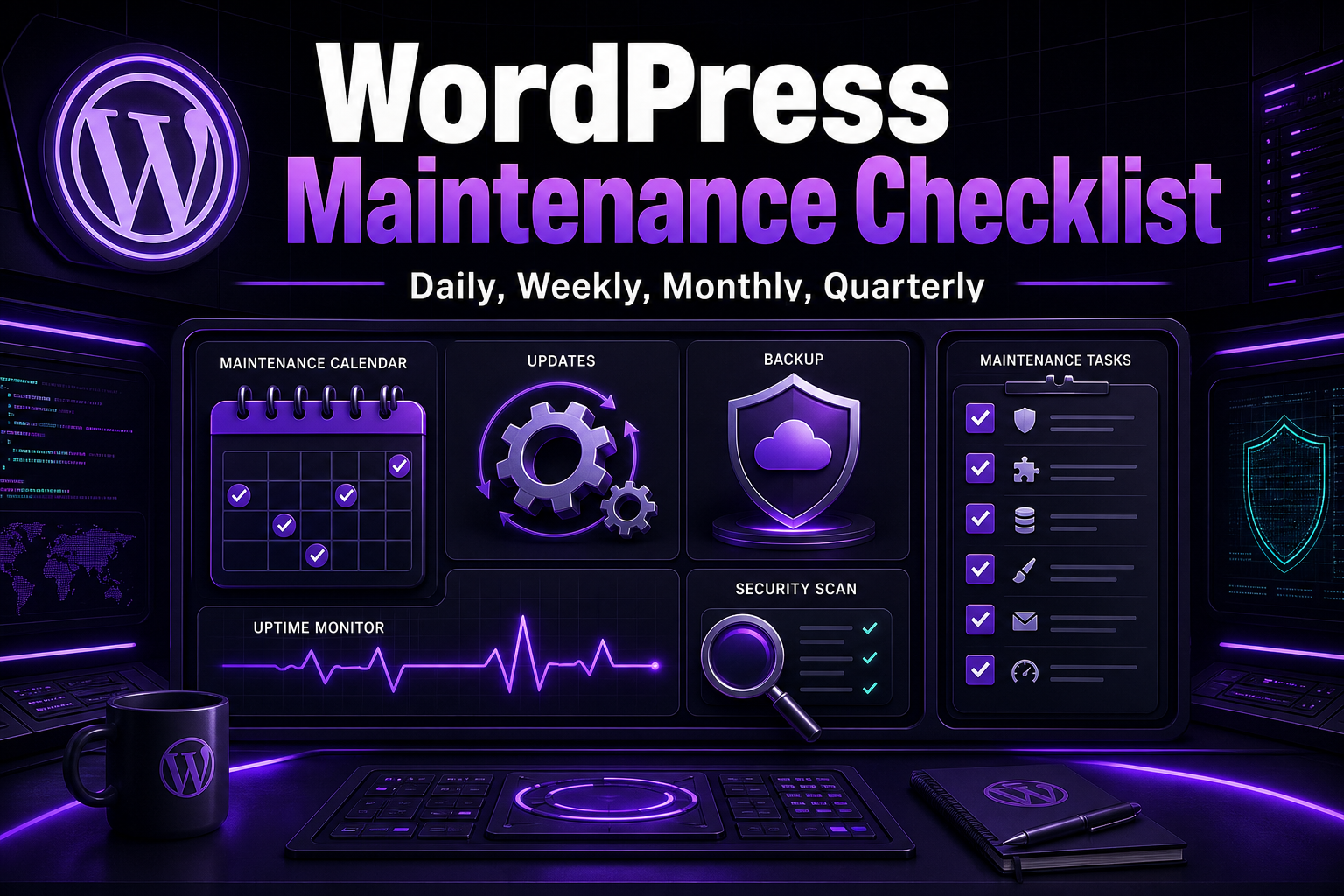
Make a current backup before editing files, replacing plugins, or restoring older versions. If orders, forms, or customer accounts are involved, staging reduces the chance of creating a second problem.
When to stop testing
Stop when you cannot identify the exact change, when logs are unavailable, or when live data could be affected. Random testing can overwrite evidence and make recovery harder.