Plugins are great. Until they're not. You click that harmless "Update" button, and suddenly your homepage is scrambled, your mobile menu's broken, or your contact form just quietly stopped sending you leads. Half the time you don't even notice. Not until a frustrated customer emails asking why the site looks off.
What Does a Plugin Conflict Actually Look Like?
Plugins get built by completely different developers who've never talked to each other. So sometimes they clash. Sometimes a new one doesn't get along with your older theme. Either way, your site's caught in the middle.
- The Layout Disaster: text overlaps, images blow up way too big, formatting just falls apart.
- The Freeze: buttons stop responding, dropdown menus won't drop, or the whole site crawls.
- The Silent Failure: forms look fine on the surface, but they've quietly stopped capturing leads. That's money leaking out every hour it goes unnoticed.
How to Troubleshoot Safely (The DIY Method)
Still got access to your dashboard? Then try this first. It's basically trial and error, a quick QA test on your own site:
- Clear your cache: your browser might just be showing you an old, broken version of the page. Clear it, check again in a private window.
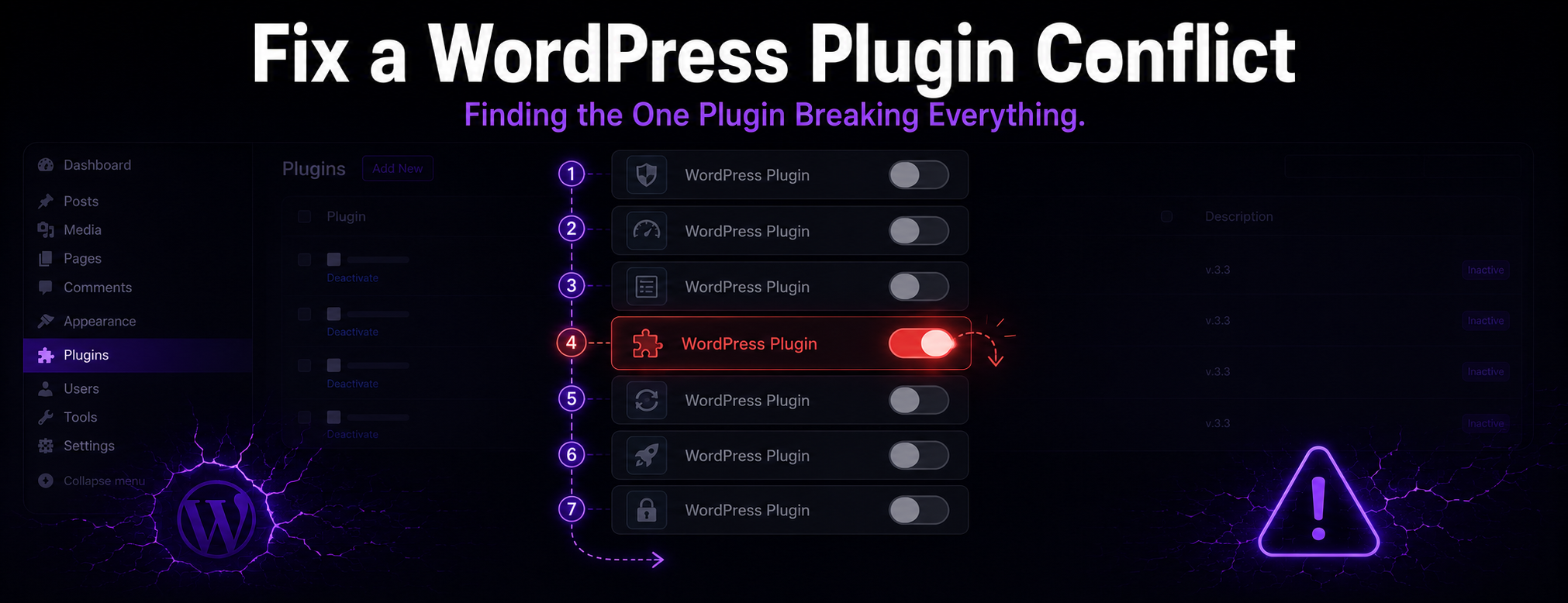
- Deactivate them all: plugins page, select everything, hit deactivate.
- Check your site: look normal again? Good, that confirms a plugin was the culprit.
- Reactivate one by one: turn them back on individually, check the frontend after each one, until it breaks again. Whatever you just switched on, that's your troublemaker.
When to Step Away from the Keyboard
Can't get into the dashboard at all? Or is the broken plugin tied to something you really can't afford to mess up, like your customer database or WooCommerce checkout? Hand it off. Now.
Pasting your error code into ChatGPT feels free and fast. So does grabbing a $15/hour freelancer off some job board. Except ChatGPT can't actually get into your server to see what's wrong, and cheap offshore developers have a habit of creating two new problems while chasing the first one. Force a fix through your backend without a real backup ready, and you could lose your data for good.
Stop Fighting Your Code
You run a business, not a dev shop. Your evening shouldn't disappear into a YouTube tutorial rabbit hole.
If testing points to a repair issue, our WordPress plugin conflict repair service can help isolate the cause, explain the scope, and test the fix before handoff.
Common plugin-conflict symptoms
- A blank page or fatal error after a plugin update.
- A broken checkout, contact form, booking flow, or admin screen.
- JavaScript errors in the browser console.
- Missing buttons, shortcodes, widgets, or payment options.
- Errors that appear only for logged-in users or only on specific pages.
Why updates expose compatibility issues
Plugin updates can change hooks, scripts, database queries, PHP requirements, or WooCommerce behavior. A conflict may have been hidden until WordPress core, the theme, PHP, or another plugin changed around it.
Backup and staging before testing
Before disabling plugins, changing themes, or rolling back versions, make a current backup of files and the database. Use staging when the host supports it, especially on WooCommerce, membership, booking, or lead-generation sites.
How to reproduce the error
Write down the exact page, user role, browser, plugin version, and steps that trigger the problem. A reproducible error is easier to diagnose than a vague "the site is broken" report.
How to review WordPress debug logs
Enable logging in a safe way, then review wp-content/debug.log, hosting error logs, and browser console messages. Look for fatal errors, missing classes, deprecated functions, REST API failures, and script conflicts.
Safe plugin-isolation sequence
Start with the most recently updated plugin, then test related plugins one at a time. Avoid disabling every plugin on a live store unless there is a backup, a maintenance window, and a rollback plan.
Theme-versus-plugin conflicts
If the issue remains after isolating plugins, test whether the theme is overriding templates, scripts, or WooCommerce hooks. Theme conflicts often look like plugin conflicts because the failure appears inside plugin output.
Rollback options
Rollback may involve restoring a backup, reverting one plugin version, restoring a theme file, or undoing a configuration change. Document what changed so the same failure does not return during the next update cycle.
When to stop troubleshooting
Stop testing when orders, forms, logins, subscriptions, or customer data could be affected. Continuing to experiment on a live site can create more work than the original bug.
When custom plugin development is required
If the plugin conflict exists because an off-the-shelf plugin cannot support your workflow, the repair path may become a new build. That is when a scoped custom WordPress plugin development project makes more sense than repeated patching.