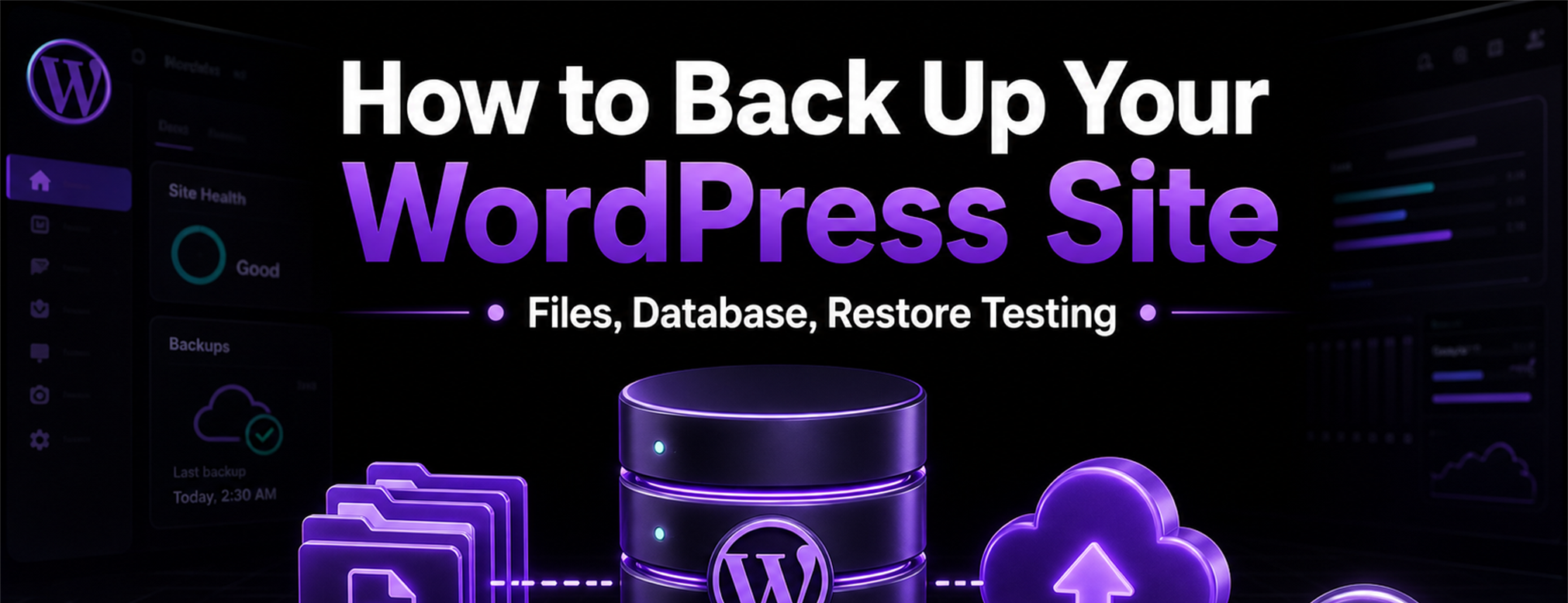
A complete backup is the single most important safety net for any WordPress site. It's also one of the things business owners skip most often, right up until the moment they need it and don't have it.
This guide walks you through every method worth using, from manual exports to host-level snapshots to plugin-based automation, so you can pick the approach that fits your situation and actually trust it.
What Does a WordPress Backup Actually Include?
A full WordPress backup has two separate parts, and you need both of them.
- Files: This includes your theme files, plugin files, media uploads (images, PDFs, videos), and any custom code. These live in your site's
wp-content/directory on the server. - Database: This is where your posts, pages, comments, user accounts, WooCommerce orders, plugin settings, and basically all your actual content lives. It's a MySQL database, and without it, your files are an empty shell.
A backup that only covers files but skips the database (or vice versa) isn't a real backup. You need both to restore a working site.
Method 1: Manual Backup via cPanel or FTP
This is the hands-on approach. No plugins needed, but you need access to your hosting control panel or FTP credentials.
For files:
- Log into your hosting cPanel (or connect via FTP using a client like FileZilla).
- Navigate to your WordPress root directory (usually
public_html/). - Download the entire directory to your local machine.
For the database:
- In cPanel, open phpMyAdmin.
- Select your WordPress database from the left sidebar.
- Click Export → choose Quick method → format SQL.
- Click Go and save the
.sqlfile to your local machine.
When this makes sense: Before major updates, before handing off access to a new developer, or as a one-time safety snapshot.
Method 2: Host-Level Backups
Most quality hosting providers (SiteGround, WP Engine, Cloudways, Kinsta) offer their own backup tools. These usually run automatically on a daily or weekly schedule.
What to check with your host:
- How often do backups run? Daily? Weekly?
- How many days of retention do you get?
- Can you trigger a manual backup before making changes?
- Can you restore from a specific date?
- Are backups stored on a separate server from your live site?
The catch: Host backups are convenient, but they're not always under your control. If the host has a server-level failure, your backup might go down with it. That's why a second off-site backup is worth having.
Method 3: Plugin-Based Automated Backups
This is the most popular approach for business owners who want set-it-and-forget-it reliability.
Recommended plugins:
- UpdraftPlus (free version available): The most widely used backup plugin. Supports scheduled backups with off-site storage to Google Drive, Dropbox, Amazon S3, and more.
- BlogVault: A premium option with real-time incremental backups and a built-in staging environment.
- Duplicator: Great for one-time full-site snapshots, especially useful before migrations.
Basic setup with UpdraftPlus:
- Install and activate UpdraftPlus from Plugins → Add New.
- Go to Settings → UpdraftPlus Backups.
- Set your file backup schedule (we recommend daily for active sites).
- Set your database backup schedule (daily or even more frequent for WooCommerce stores).
- Choose your remote storage destination (Google Drive is the easiest free option).
- Authenticate with your storage provider.
- Click Backup Now to run your first manual backup.
Off-Site Storage: Why It Matters
Storing backups on the same server as your live site is like keeping your spare house key inside the house. If the server goes down, gets hacked, or the host has a catastrophic failure, everything is gone.
Good off-site options:
- Google Drive (free up to 15 GB)
- Dropbox
- Amazon S3
- A separate hosting account
Rule of thumb: Keep at least one copy of your backup somewhere completely separate from your live host.
Limit access to backup storage. Database backups may contain customer records, administrator emails, password-reset tokens, order details, form submissions, and other sensitive business data. Use encrypted storage when available, restrict shared-drive permissions, and remove access for former vendors or team members.
How Often Should You Back Up?
| Site type | Recommended frequency |
|---|---|
| Blog or brochure site (rarely updated) | Weekly |
| Business site with regular content updates | Daily |
| WooCommerce store or membership site | Daily (database every 6–12 hours) |
| High-traffic ecommerce with frequent orders | Real-time incremental or every few hours |
Frequency should follow how often the site changes. A brochure site may only need weekly backups, while a WooCommerce store needs a database strategy that accounts for orders, refunds, subscriptions, inventory changes, and customer account updates. For active stores, coordinate backups and restores around order timing so you do not overwrite new activity with an older database.
Retention and Recovery Documentation
Backup retention answers a different question than frequency: how far back can you restore? Keep enough restore points to recover from problems discovered late, such as malware, accidental content deletion, or a plugin update that seemed fine at first.
Document:
- where backups are stored
- who has access
- how to restore files
- how to restore the database
- which plugins or hosting tools are involved
- who to contact when a restore is needed
- what must be tested after recovery
The Step Most People Skip: Restore Testing
A backup you've never tested is a backup you can't trust. At least once a quarter, try restoring your backup to a staging environment and verify:
- The site loads correctly
- All pages render properly
- Forms and checkout processes work
- Media files (images, videos) are intact
- Plugin settings are preserved
If you've never done a restore test, you don't actually know if your backups work. That's a risk most business owners can't afford.
Pre-Update and Pre-Migration Checklist
Before running any WordPress core, theme, or plugin updates:
- [ ] Run a manual full backup (files + database)
- [ ] Verify the backup completed successfully
- [ ] Download a copy to your local machine or off-site storage
- [ ] Note your current WordPress version, theme version, and active plugin versions
- [ ] If possible, test the update on a staging site first
Before starting a migration:
- [ ] Confirm the source site's files and database are backed up
- [ ] Confirm the destination environment is also recoverable
- [ ] Record DNS, domain, SSL, and hosting access
- [ ] Identify WooCommerce, membership, or booking activity that may change during the move
- [ ] Keep a rollback path available until post-migration testing is complete
Don't Want to Manage This Yourself?
Backups are critical, but they're also routine operational work that takes time and attention. If you'd rather have a professional handle it, our managed WordPress backups and maintenance service can include backup checks, restore testing, and maintenance planning.
Planning a migration? Our WordPress migration service includes backup and rollback planning as part of the migration scope.