Introduction
Running an open-source LLM without having a dedicated GPU is difficult. Small-sized models can be run via a computer’s CPU; however, this becomes increasingly difficult as the size of the model increases. The 7B model will perform poorly, while running a 13B model would become increasingly impractical. Hardware upgrades could help here; however, buying a GPU that costs hundreds of dollars does not justify the time spent trying out the various models.
You can always use APIs or rent GPUs, but it will require some payment in both cases. Besides, by using APIs, you won't have much choice since not all of the models supported by the API providers will suit your needs.
In order to avoid such problems, we decided to use another combination: free GPU usage on Kaggle, Ollama for hosting the models, and ngrok for creating a publicly accessible address to be able to access the model from mobile devices and computers. If you don't exceed the time allowed by Kaggle per session, the total price of such arrangement will be zero.
As for the code, we based our work on a How-To Geek tutorial, sticking to the general approach, but making one small change: we've modified the sequence of commands in order to launch Ollama before pulling the model, as this procedure relies on running the server first.
The Problem: There is no GPU on the Machine That You are Using
Laptops with 16GB RAM and integrated GPU are ubiquitous. Great for coding. No good for loading 13B weights onto VRAM that doesn’t exist yet.
Hardware purchases, API calls, or renting GPU from the cloud – all are reasonable approaches. But all cost money, and cost is important if you are only trying to evaluate whether your model works.
Our goal was to get GPU without having it hit our wallets.
The proposed solution: Kaggle + Ollama + ngrok
Kaggle provides a Jupyter notebook on a GPU-equipped machine. With GPU T4 x2, you will have 2 T4 GPUs totaling 32GB of VRAM. This is sufficient for loading the vast majority of models that Ollama hosts.
Ollama acts as the model server running in the Kaggle notebook, listening to port 11434 and downloading models and serving responses just as it would locally.
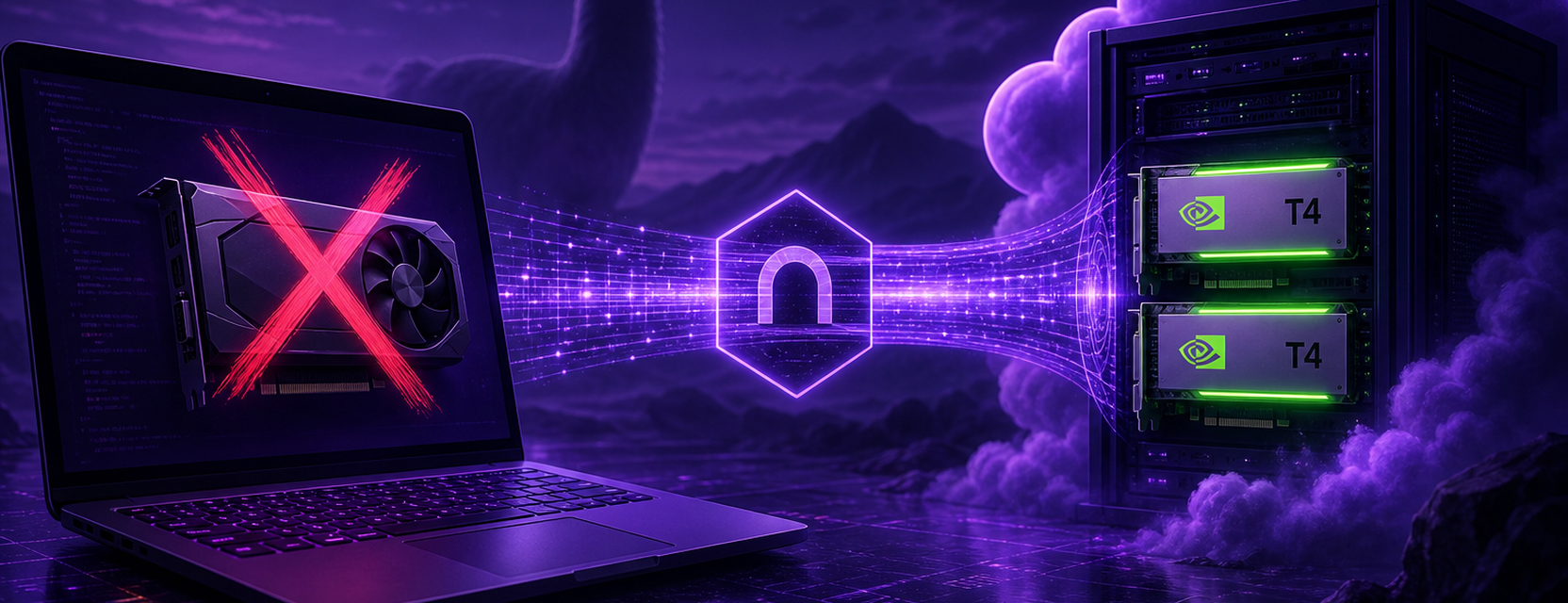
ngrok exposes port 11434 to a public HTTPS endpoint. The chat application sends requests to the ngrok-generated endpoint rather than localhost. And that's it. The model operates inside the Kaggle instance, whereas you access it from anywhere else.
System Architecture
This system architecture consists of three parts:
Kaggle notebook with free GPU runtime and Internet access required
Ollama - model server running on port 11434
ngrok - forwarding client connections to Ollama
Technical Deep Dive: Notebook Configuration
Getting Accounts Sorted Out
First of all, get an account on Kaggle and ngrok. They both have free versions.
In Kaggle, go to the settings page and verify your phone number, because otherwise, there will be no accelerator option. In ngrok, go to its dashboard and note the authtoken, which you’ll have to put in Cell 2.
Notebook Configuration
Click the new notebook button and click on settings on the right.
Select GPU T4 X2 for Accelerator. Enable Internet. If Internet isn’t enabled, then the installation of Ollama using curl won’t work, along with any command after Cell 1.
Cell 1: Dependency Installation
!apt-get install -y zstd
!pip install pyngrok
!curl -fsSL https://ollama.com/install.sh | sh
Run it and wait. Installs zstd, pyngrok, and Ollama. Usually takes a couple minutes on Kaggle.
Cell 2: ngrok Authentication
from pyngrok import ngrok
ngrok.set_auth_token("PASTE_YOUR_NGROK_AUTH_TOKEN_HERE")
Put your real token in there. No token, no tunnel later.
Cell 3: Ollama Server and Model Pull
import subprocess, time, os
os.environ["OLLAMA_HOST"] = "0.0.0.0"
os.environ["OLLAMA_ORIGINS"] = "*"

subprocess.Popen(["ollama", "serve"])
time.sleep(5)
!ollama pull llama3.2
OLLAMA_HOST = 0.0.0.0 is critical because by default it is localhost, which is not accessible externally to ngrok. The sleep ensures that ollama serve can start before the pull occurs.
llama3.2 is an example model. Feel free to use any other available model in Ollama’s catalog that will fit into 32GB. We even ran Mistral and Qwen on this setup.
Cell 4: Public URL Generation
import subprocess, time, requests
subprocess.Popen(["ngrok", "http", "11434", "--request-header-add", "ngrok-skip-browser-warning:true"])
time.sleep(3)

tunnels = requests.get("http://localhost:4040/api/tunnels").json()
print(tunnels["tunnels"][0]["public_url"])
The URL found at the bottom, like https://abc123.ngrok-free.app, is added to the chat app as the base URL for Ollama.
--request-header-add will bypass the ngrok interstitial page in case of a free account. Without the flag, API calls made by chat apps may be trapped on the interstitial page.
Connecting Chat Frontends
With Cell 4 providing a URL, the backend becomes active.
Phone: Ollama app or ChatWise. Settings > Host / Base URL > Enter the ngrok link > Select your model.
Computer: OpenWebUI or ChatWise. Settings > Providers > Ollama > API Base URL > The same link.
Send a message and confirm that there is a response to ensure connectivity: Client > ngrok > Kaggle notebook > Ollama > Model.
The connection stops when you close the tab or the session times out on the site.
Operational Constraints and Tradeoffs
| Factor | Kaggle + Ollama + ngrok | Local GPU | Commercial API |
|---|---|---|---|
| Upfront cost | $0 | $400+ | $0 |
| Ongoing cost | $0 per session | Power bill | Per token |
| VRAM | 32GB (T4 x2) | Varies | N/A |
| How long it runs | Hours, then Kaggle kills it | Always on | Always on |
| Pick your model | Anything in Ollama | Anything in Ollama | Vendor list only |
| Good for production | No | Yes | Yes |
Kaggle GPUs get shut down after a while – generally nine hours, sometimes less if you're idle. When that occurs, you rerun all four cells again and put the newly generated ngrok link into your application. Inconvenient but normal.
With free ngrok, each time it's started you'll be assigned a new subdomain. Be sure to write down the ngrok URL outside of your notebook.
32GB works fine for 7B and 13B, not so good with 70B unless you do heavy quantization.
Implementation Recommendations
Phone verification on Kaggle before anything else. Enable internet connection on in the notebook settings. Copy ngrok token.
Execute cells sequentially. Pull a model only after the ollama server starts. Leave the sleep for five seconds.
Work with smaller models first to test the pipeline, then proceed to larger ones. Pay attention to the resource panel on Kaggle if you're reaching your VRAM limit.
Consider this environment a playground. Useful for testing out different models before purchasing a GPU or paying for API access. Far from what you would want your customers to see.
Conclusion
The lack of a local GPU doesn't mean that you cannot use the open-source models locally. The resources are provided by Kaggle for compute, Ollama for serving, ngrok as a bridge to the network. The solution is imperfect and a little messy in regard to restarting sessions, but it's cheap.
Technical Details
Architecture Components:
Kaggle notebook with GPU T4 x2 (32GB VRAM)
Ollama inference server on port 11434
ngrok HTTPS tunnel with browser security exception
Ollama compatible chat interface (OpenWebUI, ChatWise, Ollama mobile)
Cell Order in Notebook:
zstd, pyngrok and Ollama installation
ngrok authentication via Authtoken
Run Ollama serve command, pull target model
ngrok tunnel initiation, display public address
Important Constraints:
Kaggle notebooks run for hours but not days
ngrok subdomain name gets updated with fresh run
Limited VRAM (32GB) restricts model size to around 13B
Internet connection necessary for installation, pulling and communication
Reference: